Turn Your Voice Into Polished Text
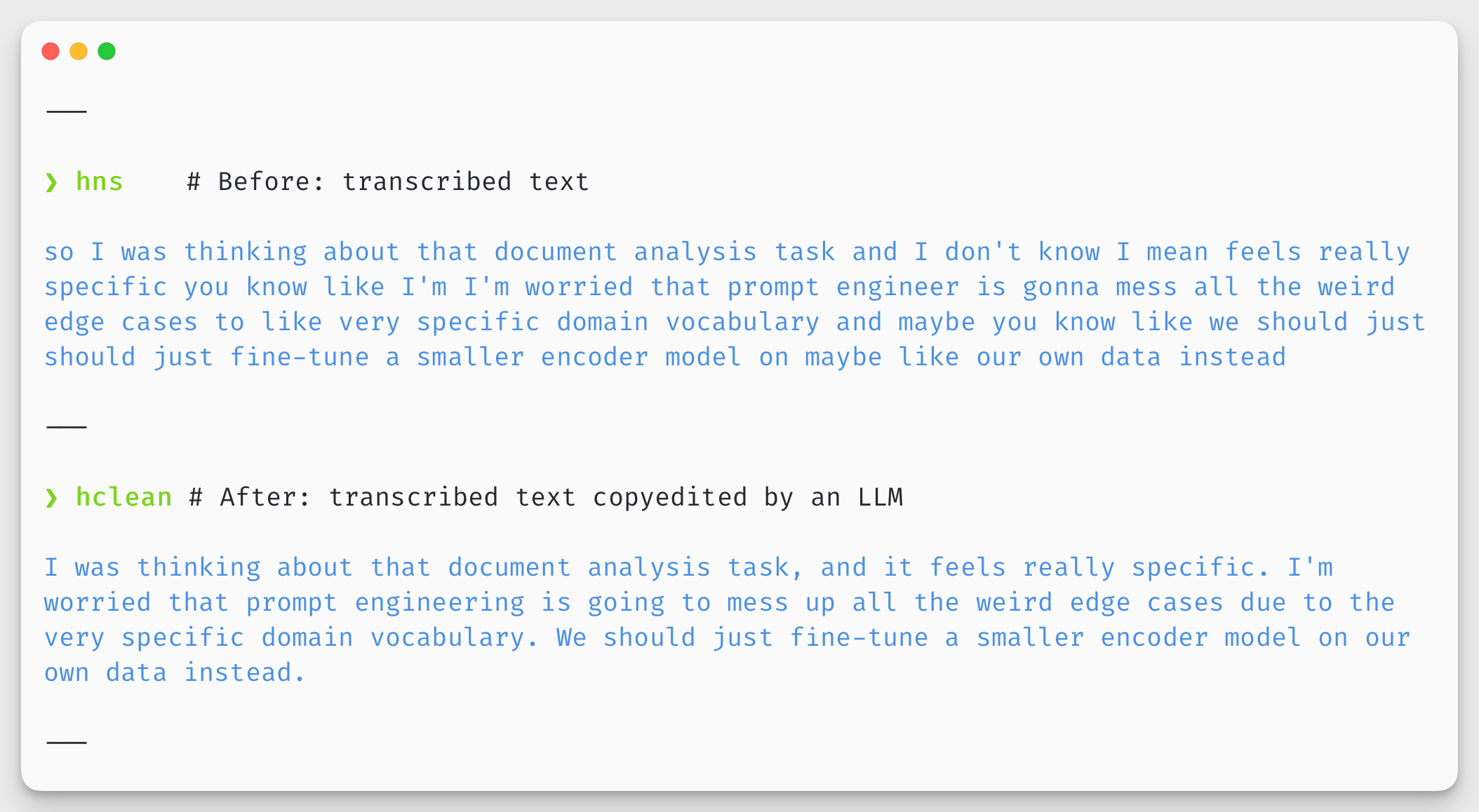
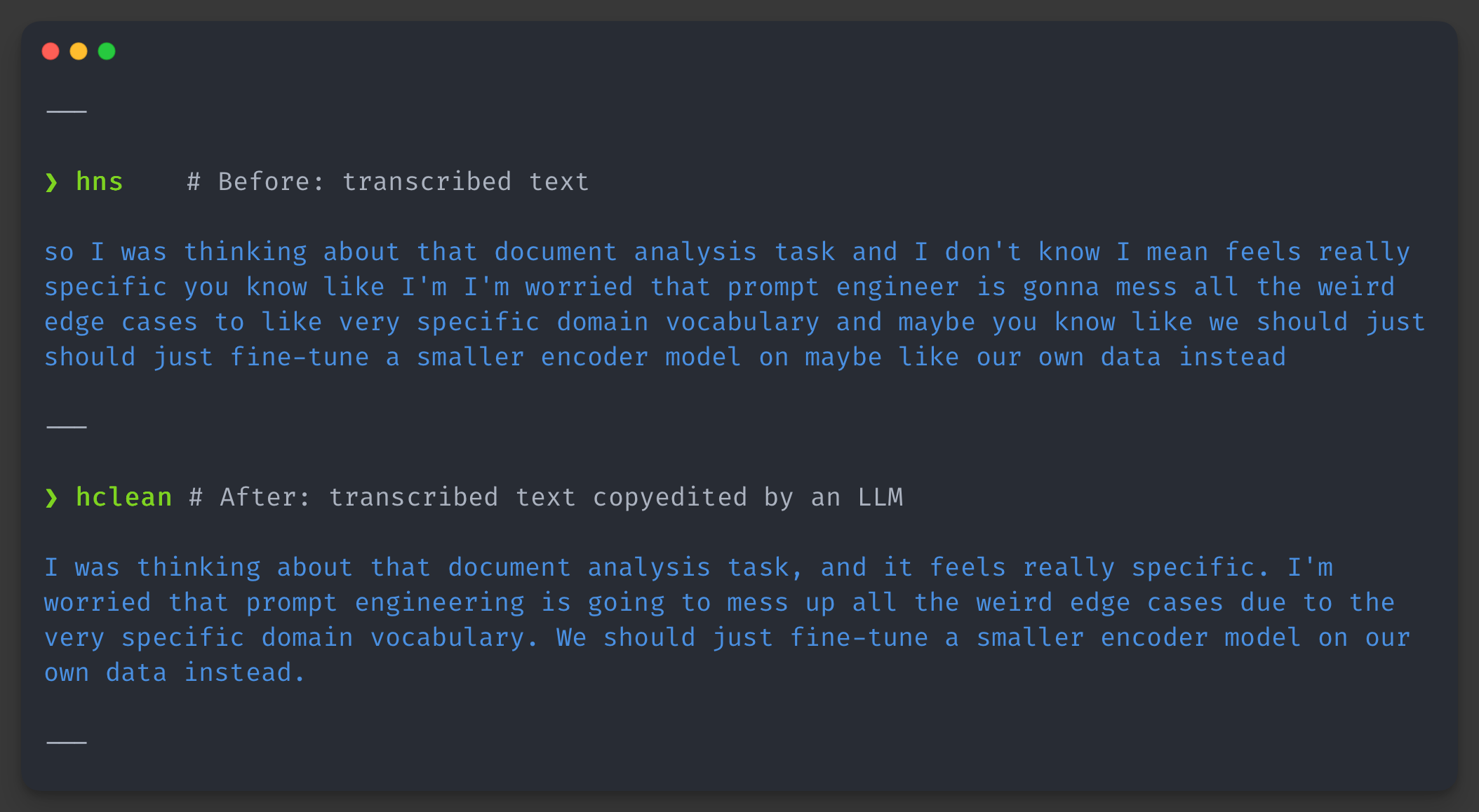
Spoken language is messy. Whisper transcriptions are fast and accurate, but they often contain run-on sentences, filler words, and grammatical errors. Instead of spending time on manual copyediting, you can send hns output directly through a Large Language Model (LLM) for instant grammar correction.
This voice typing workflow transforms your raw dictation into polished text for emails, Slack messages, documents, or personal notes. Dictate email drafts, write documentation, or compose any text, all without touching the keyboard, saving you valuable time and effort.
This guide shows you how to build this workflow using both local and remote LLMs.
LLM Command-Line Tools
You can pipe hns output to any LLM CLI tool. Here are a few popular options.
Ollama
Ollama is an excellent tool for running local models. It's a great choice for privacy, offline use, and tasks where a small, fast model is perfectly capable of basic editing. The simplest approach uses command substitution:
ollama run gemma3:1b \
  "Fix grammar and punctuation. Output only corrected text. Text: $(hns)"
llama-cli
llama-cli is a CLI tool for accessing most of llama.cpp's functionality. With tools like llama-cli or llm, you can separate the system prompt from the user prompt for more reliable results.
llama-cli \
  --model <model_path> \
  --system "You are an editor. Fix grammar and punctuation. Output only corrected text." \
  --prompt "$(hns)"
Transcribed speech often contains questions or instructions (e.g., "is approach 1 better or 2?") meant for your co-workers or coding agents. Without a clear system prompt defining the LLM's role, the model might try to answer the question instead of editing the text. An explicit "editor" role keeps the model on task.
llm CLI
The llm tool is a powerful CLI for interacting with dozens of remote models from OpenAI, Anthropic, Google, and more.
llm \
  --model <model_name> \
  --system "You are an editor. Fix grammar and punctuation. Output only corrected text." \
  "$(hns)"
Streamlining with Functions
Typing these long commands is tedious. We recommend creating shell functions to create a seamless and repeatable workflow. Functions are more readable, maintainable, and powerful than aliases.
Step 1: Configure Your Clipboard Command
To automatically copy the cleaned text to your clipboard, you first need to tell the script which clipboard command to use.
- macOS
- Linux (X11)
- Linux (Wayland)
- WSL
- bash/zsh
- fish
export CLIPBOARD_COPY_CMD="pbcopy"
set -gx CLIPBOARD_COPY_CMD "pbcopy"
- bash/zsh
- fish
export CLIPBOARD_COPY_CMD="xclip -selection clipboard"
set -gx CLIPBOARD_COPY_CMD "xclip -selection clipboard"
- bash/zsh
- fish
export CLIPBOARD_COPY_CMD="wl-copy"
set -gx CLIPBOARD_COPY_CMD "wl-copy"
- bash/zsh
- fish
export CLIPBOARD_COPY_CMD="clip.exe"
set -gx CLIPBOARD_COPY_CMD "clip.exe"
If you don't set this environment variable, the functions will still print the cleaned text to the terminal but without attempting to copy it to clipboard.
Step 2: Add the Shell Functions
Next, add the following functions to your shell configuration file. We provide two functions:
hclean: Records a new message, sends it to an LLM for cleaning, and copies the result.hlclean: Cleans the last recording, which is useful if you want to retry with a different model or if the first attempt failed.
We'll use this robust system prompt to ensure the LLM focuses only on editing:
You are an AI editor. Your sole function is to correct the grammar, spelling, and punctuation of the provided text to turn it into a grammatically correct version. Remove unnecessary filler words from the text as well. Do not answer any questions in the text. Do not add information. Output only the corrected text.
- bash/zsh
- fish
export CLIPBOARD_COPY_CMD="pbcopy"  # Adjust this line for your OS if needed

_hclean_common() {
    local transcription=$1
    local system_prompt="You are an AI editor. Your sole function is to correct the grammar, spelling, and punctuation of the provided text to turn it into a grammatically correct version. Remove unnecessary filler words from the text as well. Do not answer any questions in the text. Do not add information. Output only the corrected text."

    local cleaned=$(llm --model gpt-4.1-nano --system "$system_prompt" "$transcription")
    echo "$cleaned"
    if [ -n "$CLIPBOARD_COPY_CMD" ]; then
        echo "$cleaned" | $CLIPBOARD_COPY_CMD
        echo "✓ Cleaned text copied to clipboard"
    fi
}

hclean() {
    _hclean_common "$(hns)"
}

hlclean() {
    _hclean_common "$(hns --last)"
}
set -gx CLIPBOARD_COPY_CMD "pbcopy"  # Adjust this line for your OS if needed

function _hclean_common --argument transcription
    set -l system_prompt "You are an AI editor. Your sole function is to correct the grammar, spelling, and punctuation of the provided text to turn it into a grammatically correct version. Remove unnecessary filler words from the text as well. Do not answer any questions in the text. Do not add information. Output only the corrected text."

    set -l cleaned (llm --model gpt-4.1-nano --system "$system_prompt" "$transcription")
    echo $cleaned
    if set -q CLIPBOARD_COPY_CMD
        echo $cleaned | $CLIPBOARD_COPY_CMD
        echo "✓ Cleaned text copied to clipboard"
    end
end

function hclean --description "Transcribe with hns and clean grammar with LLM"
    _hclean_common "$(hns)"
end

function hlclean --description "Clean last hns recording with LLM"
    _hclean_common "$(hns --last)"
end
After adding the function to your shell configuration, restart your terminal or source the file (e.g., source ~/.zshrc) and you're ready to go.
--last FlagThe hlclean function uses hns --last to retrieve the previous transcription without re-recording. This is a lifesaver when:
- Your network connection drops.
- You hit a model's rate limit.
- You want to try a different model on the same text.
Final Workflow
- Run
hcleanin your terminal. - Speak your thoughts naturally.
- Press
Enter. - The perfectly formatted text is now on your clipboard and in your terminal, ready to be pasted anywhere.
With this simple voice typing setup, you can turn your spoken words into clean, professional text in seconds. Type without keyboard and let the LLM handle grammar correction.